Impala – Insert Statement
The INSERT Statement of Impala has two clauses − into and overwrite. Insert statement with into clause is used to add new records into an existing table in a database.
Syntax
There are two basic syntaxes of INSERT statement as follows −
insert into table_name (column1, column2, column3,…columnN)
values (value1, value2, value3,…valueN);
Here, column1, column2,…columnN are the names of the columns in the table into which you want to insert data.
You can also add values without specifying the column names but, for that you need to make sure the order of the values is in the same order as the columns in the table as shown below.
Insert into table_name values (value1, value2, value2);
CREATE TABLE is the keyword telling the database system to create a new table. The unique name or identifier for the table follows the CREATE TABLE statement. Optionally you can specify database_name along with the table_name.
Example
Suppose we have created a table named student in Impala as shown below.
create table employee (Id INT, name STRING, age INT,address STRING, salary BIGINT);
Following is an example of creating a record in the table named employee.
[quickstart.cloudera:21000] > insert into employee
(ID,NAME,AGE,ADDRESS,SALARY)VALUES (1, ‘Ramesh’, 32, ‘Ahmedabad’, 20000 );
On executing the above statement, a record is inserted into the table named employee displaying the following message.
Query: insert into employee (ID,NAME,AGE,ADDRESS,SALARY) VALUES (1, ‘Ramesh’,
32, ‘Ahmedabad’, 20000 )
Inserted 1 row(s) in 1.32s
You can insert another record without specifying the column names as shown below.
[quickstart.cloudera:21000] > insert into employee values (2, ‘Khilan’, 25,
‘Delhi’, 15000 );
On executing the above statement, a record is inserted into the table named employee displaying the following message.
Query: insert into employee values (2, ‘Khilan’, 25, ‘Delhi’, 15000 )
Inserted 1 row(s) in 0.31s
You can insert a few more records in the employee table as shown below.
Insert into employee values (3, ‘kaushik’, 23, ‘Kota’, 30000 );
Insert into employee values (4, ‘Chaitali’, 25, ‘Mumbai’, 35000 );
Insert into employee values (5, ‘Hardik’, 27, ‘Bhopal’, 40000 );
Insert into employee values (6, ‘Komal’, 22, ‘MP’, 32000 );
After inserting the values, the employee table in Impala will be as shown below.
| +—-+———-+—–+———–+——–+ | id | name | age | address | salary | +—-+———-+—–+———–+——–+ | 1 | Ramesh | 32 | Ahmedabad | 20000 | | 2 | Khilan | 25 | Delhi | 15000 | | 5 | Hardik | 27 | Bhopal | 40000 | | 4 | Chaitali | 25 | Mumbai | 35000 | | 3 | kaushik | 23 | Kota | 30000 | | 6 | Komal | 22 | MP | 32000 | +—-+———-+—–+———–+——–+ |
Overwriting the Data in a Table
We can overwrite the records of a table using overwrite clause. The overwritten records will be permanently deleted from the table. Following is the syntax of using the overwrite clause.
Insert overwrite table_name values (value1, value2, value2);
Example
Following is an example of using the clause overwrite.
[quickstart.cloudera:21000] > Insert overwrite employee values (1, ‘Ram’, 26,
‘Vishakhapatnam’, 37000 );
On executing the above query, this will overwrite the table data with the specified record displaying the following message.
Query: insert overwrite employee values (1, ‘Ram’, 26, ‘Vishakhapatnam’, 37000 )
Inserted 1 row(s) in 0.31s
On verifying the table, you can observe that all the records of the table employee are overwritten by new records as shown below.
| +—-+——+—–+—————+——–+ | id | name | age | address | salary | +—-+——+—–+—————+——–+ | 1 | Ram | 26 | Vishakhapatnam| 37000 | +—-+——+—–+—————+——–+ |
Inserting Data using Hue Browser
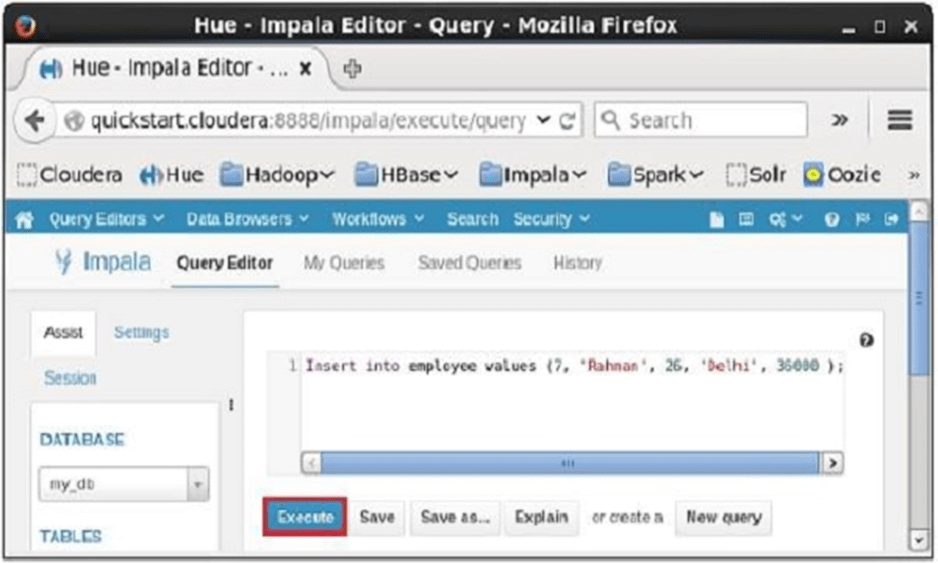
Open Impala Query editor and type the insert Statement in it. And click on the execute button as shown in the following screenshot.
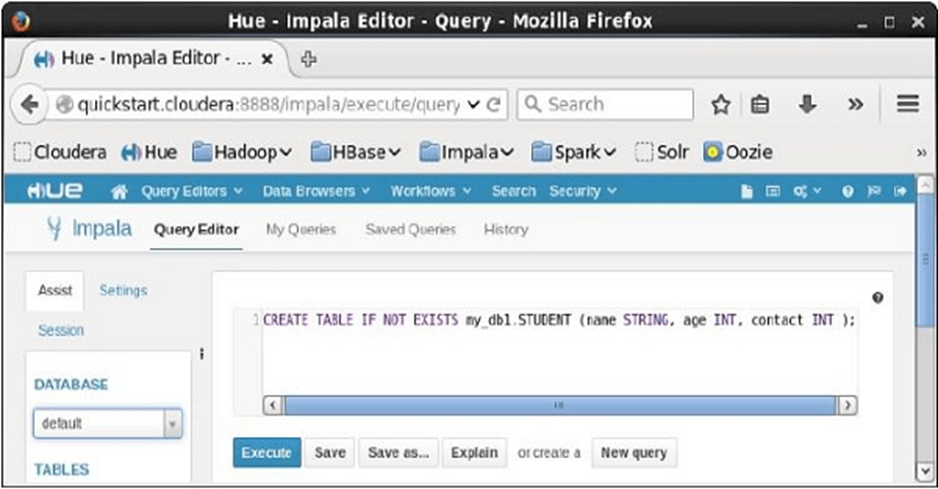
After executing the query/statement, this record is added to the table.
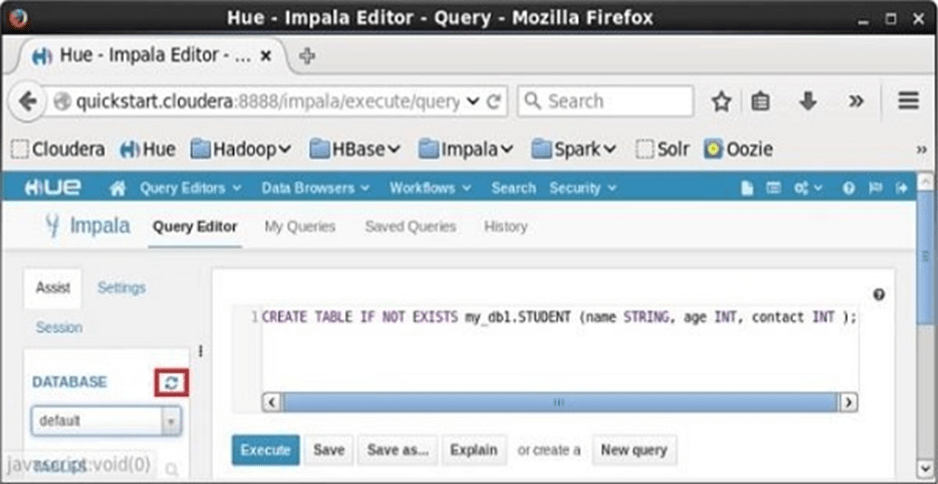
After executing the query, gently move the cursor to the top of the dropdown menu and you will find a refresh symbol. If you click on the refresh symbol, the list of databases will be refreshed and the recent changes done are applied to it.After executing the query, gently move the cursor to the top of the dropdown menu and you will find a refresh symbol. If you click on the refresh symbol, the list of databases will be refreshed and the recent changes done are applied to it.
Verification
Click on the drop down under the heading DATABASE on the left-hand side of the editor. There you can see a list of databases. Select the database my_db as shown below.
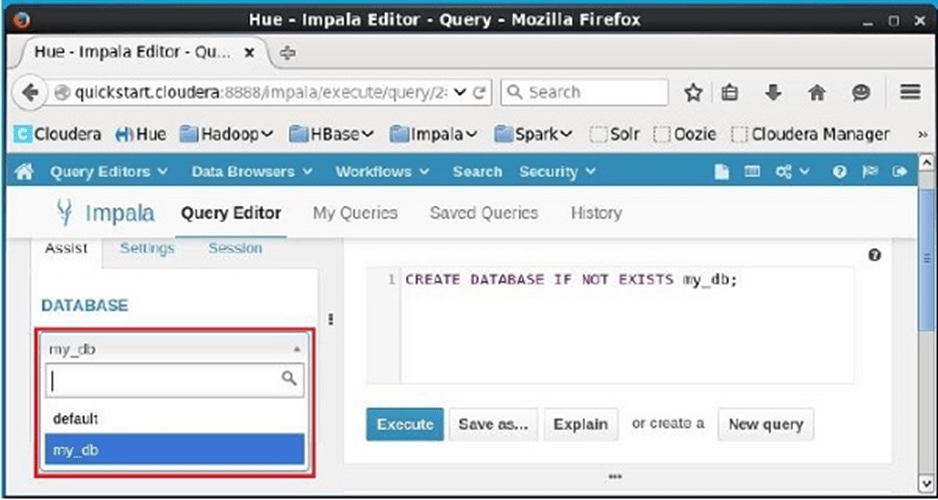
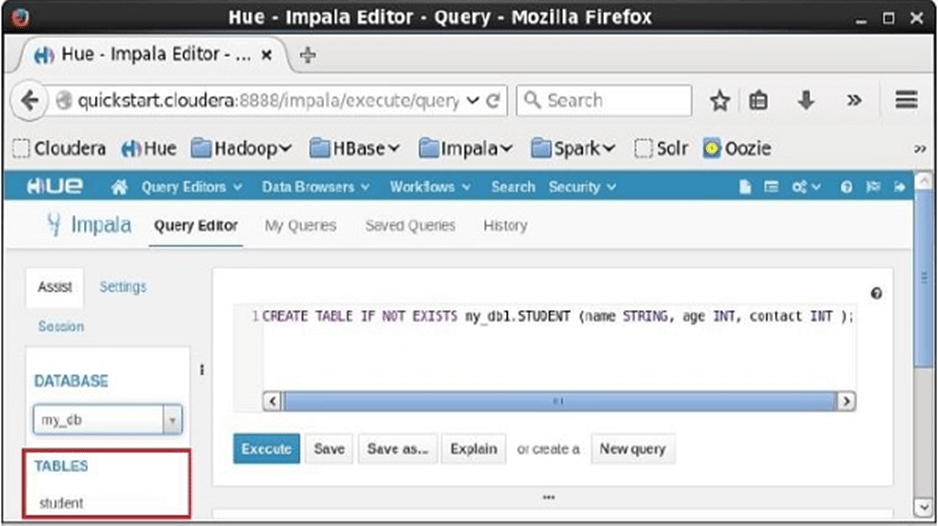
On selecting the database my_db you can see a list of tables in it as shown below. Here you can find the newly created table student as shown below.
Impala – Select Statement
Impala SELECT statement is used to fetch the data from one or more tables in a database. This query returns data in the form of tables.
Syntax
Following is the syntax of the Impala select statement.
SELECT column1, column2, columnN from table_name;
Here, column1, column2…are the fields of a table whose values you want to fetch. If you want to fetch all the fields available in the field, then you can use the following syntax −
SELECT * FROM table_name;
Example
Assume we have a table named customers in Impala, with the following data −
ID NAME AGE ADDRESS SALARY |
You can fetch the id, name, and age of all the records of the customers table using select statement as shown below −
[quickstart.cloudera:21000] > select id, name, age from customers;
On executing the above query, Impala fetches id, name, age of all the records from the specified table and displays them as shown below.
Query: select id,name,age from customers
| +—-+———-+—–+ | id | name | age | | 1 | Ramesh | 32 | | 2 | Khilan | 25 | | 3 | Hardik | 27 | | 4 | Chaitali | 25 | | 5 | kaushik | 23 | | 6 | Komal | 22 | +—-+———-+—–+ |
Fetched 6 row(s) in 0.66s
You can also fetch all the records from the customers table using the select query as shown below.
[quickstart.cloudera:21000] > select name, age from customers; Query: select * from customers
On executing the above query, Impala fetches and displays all the records from the specified table as shown below.
| +—-+———-+—–+———–+——–+ | id | name | age | address | salary | +—-+———-+—–+———–+——–+ | 1 | Ramesh | 32 | Ahmedabad | 20000 | | 2 | Khilan | 25 | Delhi | 15000 | | 3 | Hardik | 27 | Bhopal | 40000 | | 4 | Chaitali | 25 | Mumbai | 35000 | | 5 | kaushik | 23 | Kota | 30000 | | 6 | Komal | 22 | MP | 32000 | +—-+———-+—–+———–+——–+ |
Fetched 6 row(s) in 0.66s
Fetching the Records using Hue
Open Impala Query editor and type the select Statement in it. And click on the execute button as shown in the following screenshot.
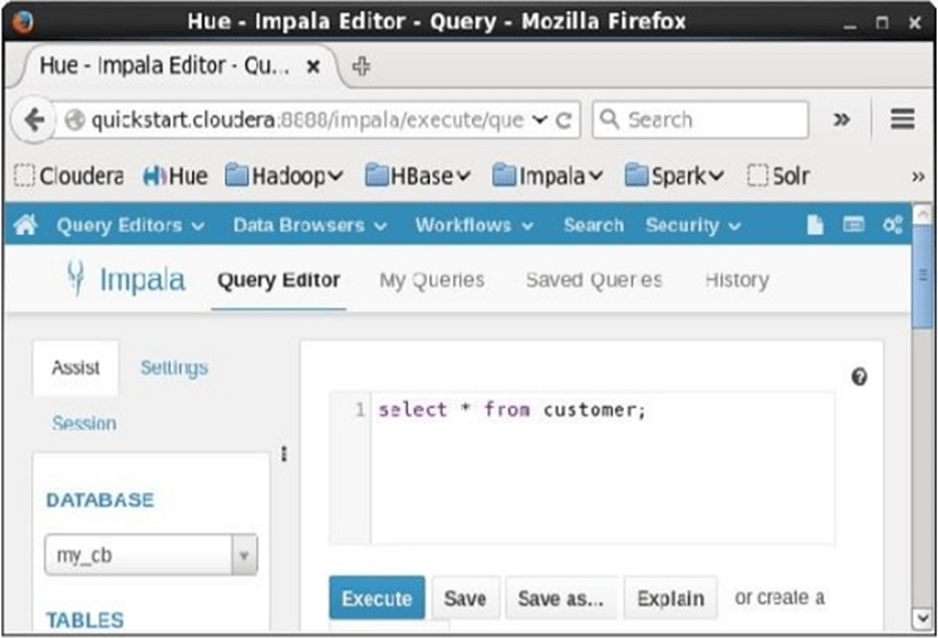
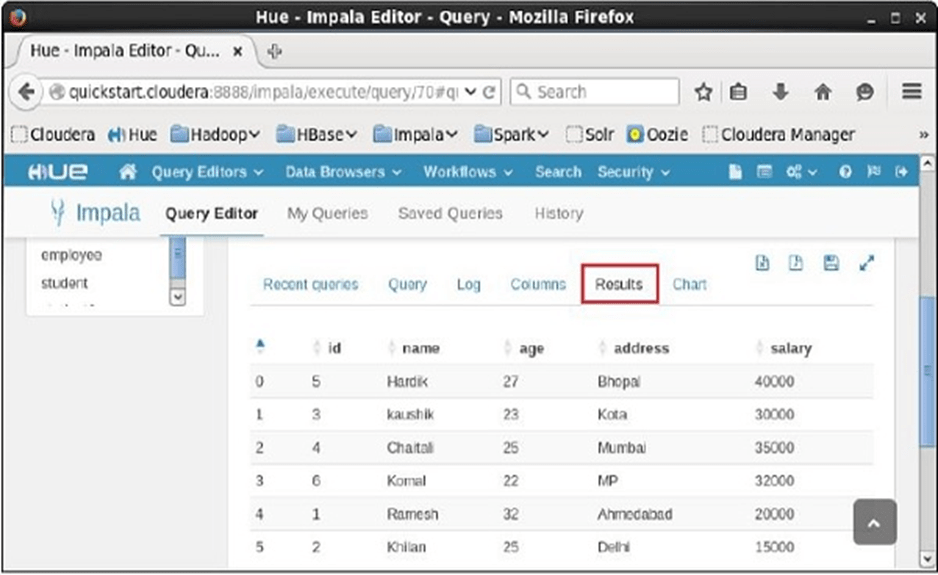
After executing the query, if you scroll down and select the Results tab, you can see the list of the records of the specified table as shown below.