
Apache Impala
Impala is a MPP (Massive Parallel Processing) SQL query engine for processing huge volumes of data that is stored in Hadoop cluster. It is an open source software which is written in C++ and Java. It provides high performance and low latency compared to other SQL engines for Hadoop.
Why Impala?
Impala combines the SQL support and multi-user performance of a traditional analytic database with the scalability and flexibility of Apache Hadoop, by utilizing standard components such as HDFS, HBase, Metastore, YARN, and Sentry.
- With Impala, users can communicate with HDFS or HBase using SQL queries in a faster way compared to other SQL engines like Hive.
- Impala can read almost all the file formats such as Parquet, Avro, RCFile used by Hadoop.
Impala uses the same metadata, SQL syntax (Hive SQL), ODBC driver, and user interface (Hue Beeswax) as Apache Hive, providing a familiar and unified platform for batch-oriented or real-time queries.
Unlike Apache Hive, Impala is not based on MapReduce algorithms. It implements a distributed architecture based on daemon processes that are responsible for all the aspects of query execution that run on the same machines.
Thus, it reduces the latency of utilizing MapReduce and this makes Impala faster than Apache Hive.
Advantages of Impala
Here is a list of some noted advantages of Cloudera Impala.
- Using impala, you can process data that is stored in HDFS at lightning-fast speed with traditional SQL knowledge.
- Since the data processing is carried where the data resides (on Hadoop cluster), data transformation and data movement is not required for data stored on Hadoop, while working with Impala.
- Using Impala, you can access the data that is stored in HDFS, HBase, and Amazon s3 without the knowledge of Java (MapReduce jobs). You can access them with a basic idea of SQL queries.
- To write queries in business tools, the data has to be gone through a complicated extract-transform-load (ETL) cycle. But, with Impala, this procedure is shortened. The time-consuming stages of loading & reorganizing is overcome with the new techniques such as exploratory data analysis & data discovery making the process faster.
- Impala is pioneering the use of the Parquet file format, a columnar storage layout that is optimized for large-scale queries typical in data warehouse scenarios.
Features of Impala
Given below are the features of cloudera Impala −
- Impala is available freely as open source under the Apache license.
- Impala supports in-memory data processing, i.e., it accesses/analyzes data that is stored on Hadoop data nodes without data movement.
- You can access data using Impala using SQL-like queries.
- Impala provides faster access for the data in HDFS when compared to other SQL engines.
- Using Impala, you can store data in storage systems like HDFS, Apache HBase, and Amazon s3.
- You can integrate Impala with business intelligence tools like Tableau, Pentaho, Micro strategy, and Zoom data.
- Impala supports various file formats such as, LZO, Sequence File, Avro, RCFile, and Parquet.
- Impala uses metadata, ODBC driver, and SQL syntax from Apache Hive.
Relational Databases and Impala
Impala uses a Query language that is similar to SQL and HiveQL. The following table describes some of the key dfferences between SQL and Impala Query language.
| Impala | Relational databases |
| Impala uses an SQL like query language that is similar to HiveQL. | Relational databases use SQL language. |
| In Impala, you cannot update or delete individual records. | In relational databases, it is possible to update or delete individual records. |
| Impala does not support transactions. | Relational databases support transactions. |
| Impala does not support indexing. | Relational databases support indexing. |
| Impala stores and manages large amounts of data (petabytes). | Relational databases handle smaller amounts of data (terabytes) when compared to Impala. |
Hive, Hbase, and Impala
Though Cloudera Impala uses the same query language, metastore, and the user interface as Hive, it differs with Hive and HBase in certain aspects. The following table presents a comparative analysis among HBase, Hive, and Impala.
| HBase | Hive | Impala |
| HBase is wide-column store database based on Apache Hadoop. It uses the concepts of BigTable. | Hive is a data warehouse software. Using this, we can access and manage large distributed datasets, built on Hadoop. | Impala is a tool to manage, analyze data that is stored on Hadoop. |
| The data model of HBase is wide column store. | Hive follows Relational model. | Impala follows Relational model. |
| HBase is developed using Java language. | Hive is developed using Java language. | Impala is developed using C++. |
| The data model of HBase is schema-free. | The data model of Hive is Schema-based. | The data model of Impala is Schema-based. |
| HBase provides Java, RESTful and, Thrift API’s. | Hive provides JDBC, ODBC, Thrift API’s. | Impala provides JDBC and ODBC API’s. |
| Supports programming languages like C, C#, C++, Groovy, Java PHP, Python, and Scala. | Supports programming languages like C++, Java, PHP, and Python. | Impala supports all languages supporting JDBC/ODBC. |
| HBase provides support for triggers. | Hive does not provide any support for triggers. | Impala does not provide any support for triggers. |
All these three databases −
- Are NOSQL databases.
- Available as open source.
- Support server-side scripting.
- Follow ACID properties like Durability and Concurrency.
- Use sharding for partitioning.
Drawbacks of Impala
Some of the drawbacks of using Impala are as follows −
- Impala does not provide any support for Serialization and Deserialization.
- Impala can only read text files, not custom binary files.
- Whenever new records/files are added to the data directory in HDFS, the table needs to be refreshed.
This chapter explains the prerequisites for installing Impala, how to download, install and set up Impala in your system.
Similar to Hadoop and its ecosystem software, we need to install Impala on Linux operating system. Since cloudera shipped Impala, it is available with Cloudera Quick Start VM.
This chapter describes how to download Cloudera Quick Start VM and start Impala.
Downloading Cloudera Quick Start VM
Follow the steps given below to download the latest version of Cloudera QuickStartVM.
Step 1
Open the homepage of cloudera website http://www.cloudera.com/. You will get the page as shown below.

Step 2
Click the Sign in link on the cloudera homepage, which will redirect you to the Sign in page as shown below.

If you haven’t registered yet, click the Register Now link which will give you Account Registration form. Register there and sign in to cloudera account.
Step 3
After signing in, open the download page of cloudera website by clicking on the Downloads link highlighted in the following snapshot.

Step 4 – Download QuickStartVM
Download the cloudera QuickStartVM by clicking on the Download Now button, as highlighted in the following snapshot

This will redirect you to the download page of QuickStart VM.

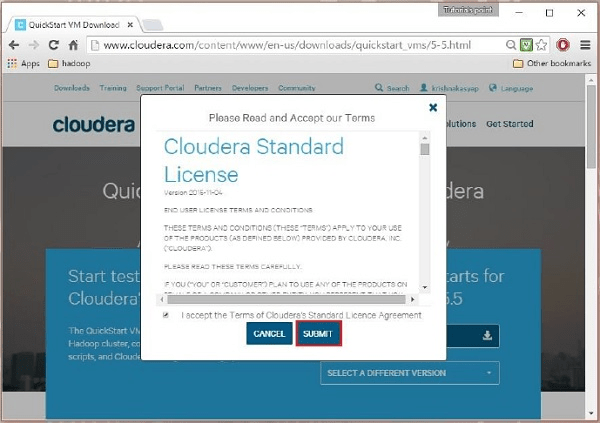
Click the Get ONE NOW button, accept the license agreement, and click the submit button as shown below.
Cloudera provides its VM compatible VMware, KVM and VIRTUALBOX. Select the required version. Here in our tutorial, we are demonstrating the Cloudera QuickStartVM setup using virtual box, therefore click the VIRTUALBOX DOWNLOAD button, as shown in the snapshot given below.
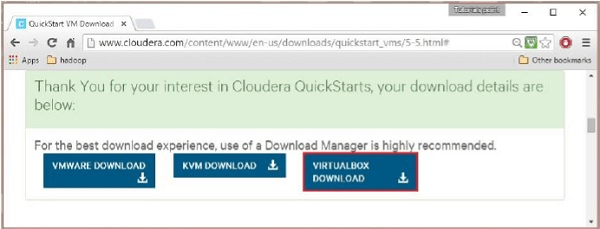
This will start downloading a file named cloudera-quickstart-vm-5.5.0-0-virtualbox.ovf which is a virtual box image file.
Importing the Cloudera QuickStartVM
After downloading the cloudera-quickstart-vm-5.5.0-0-virtualbox.ovf file, we need to import it using virtual box. For that, first of all, you need to install virtual box in your system. Follow the steps given below to import the downloaded image file.
Step 1
Download virtual box from the following link and install it https://www.virtualbox.org/
Step 2
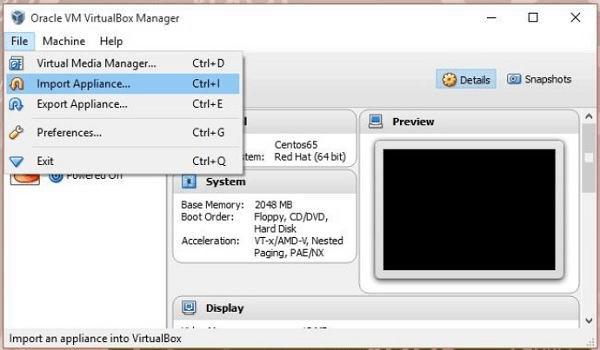
Open the virtual box software. Click File and choose Import Appliance, as shown below.
Step 3
On clicking Import Appliance, you will get the Import Virtual Appliance window. Select the location of the downloaded image file as shown below.

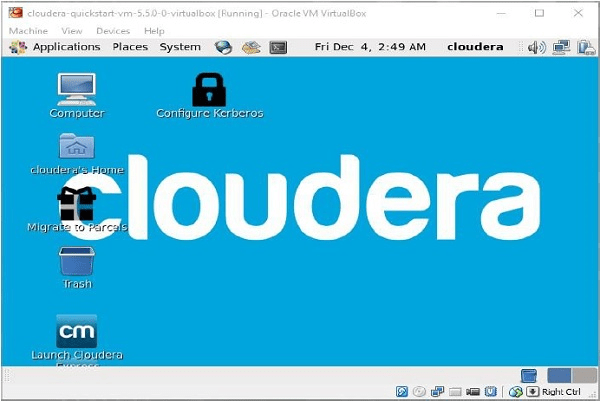
After importing Cloudera QuickStartVM image, start the virtual machine. This virtual machine has Hadoop, cloudera Impala, and all the required software installed. The snapshot of the VM is shown below.
Starting Impala Shell
To start Impala, open the terminal and execute the following command.
[cloudera@quickstart ~] $ impala-shell
This will start the Impala Shell, displaying the following message.
Starting Impala Shell without Kerberos authentication
Connected to quickstart.cloudera:21000
Server version: impalad version 2.3.0-cdh5.5.0 RELEASE (build
0c891d79aa38f297d244855a32f1e17280e2129b)
********************************************************************************
Welcome to the Impala shell. Copyright (c) 2015 Cloudera, Inc. All rights reserved.
(Impala Shell v2.3.0-cdh5.5.0 (0c891d7) built on Mon Nov 9 12:18:12 PST 2015)
Press TAB twice to see a list of available commands.
********************************************************************************
[quickstart.cloudera:21000] >
Note − We will discuss all the impala-shell commands in later chapters.
Impala Query editor
In addition to Impala shell, you can communicate with Impala using the Hue browser. After installing CDH5 and starting Impala, if you open your browser, you will get the cloudera homepage as shown below.

Now, click the bookmark Hue to open the Hue browser. On clicking, you can see the login page of the Hue Browser, logging with the credentials cloudera and cloudera.

As soon as you log on to the Hue browser, you can see the Quick Start Wizard of Hue browser as shown below.

On clicking the Query Editors drop-down menu, you will get the list of editors Impala supports as shown in the following screenshot.

On clicking Impala in the drop-down menu, you will get the Impala query editor as shown below.

Impala is an MPP (Massive Parallel Processing) query execution engine that runs on a number of systems in the Hadoop cluster. Unlike traditional storage systems, impala is decoupled from its storage engine. It has three main components namely, Impala daemon (Impalad), Impala Statestore, and Impala metadata or metastore.

Impala daemon(Impalad)
Impala daemon (also known as impalad) runs on each node where Impala is installed. It accepts the queries from various interfaces like impala shell, hue browser, etc.… and processes them.
Whenever a query is submitted to an impalad on a particular node, that node serves as a “coordinator node” for that query. Multiple queries are served by Impalad running on other nodes as well. After accepting the query, Impalad reads and writes to data files and parallelizes the queries by distributing the work to the other Impala nodes in the Impala cluster. When queries are processing on various Impalad instances, all of them return the result to the central coordinating node.
Depending on the requirement, queries can be submitted to a dedicated Impalad or in a load balanced manner to another Impalad in your cluster.
Impala State Store
Impala has another important component called Impala State store, which is responsible for checking the health of each Impalad and then relaying each Impala daemon health to the other daemons frequently. This can run on same node where Impala server or other node within the cluster is running.
The name of the Impala State store daemon process is State stored. Impalad reports its health status to the Impala State store daemon, i.e., State stored.
In the event of a node failure due to any reason, Statestore updates all other nodes about this failure and once such a notification is available to the other impalad, no other Impala daemon assigns any further queries to the affected node.
Impala Metadata & Meta Store
Impala metadata & meta store is another important component. Impala uses traditional MySQL or PostgreSQL databases to store table definitions. The important details such as table & column information & table definitions are stored in a centralized database known as a meta store.
Each Impala node caches all of the metadata locally. When dealing with an extremely large amount of data and/or many partitions, getting table specific metadata could take a significant amount of time. So, a locally stored metadata cache helps in providing such information instantly.
When a table definition or table data is updated, other Impala daemons must update their metadata cache by retrieving the latest metadata before issuing a new query against the table in question.
Query Processing Interfaces
To process queries, Impala provides three interfaces as listed below.
- Impala-shell − After setting up Impala using the Cloudera VM, you can start the Impala shell by typing the command impala-shell in the editor. We will discuss more about the Impala shell in coming chapters.
- Hue interface − You can process Impala queries using the Hue browser. In the Hue browser, you have Impala query editor where you can type and execute the impala queries. To access this editor, first of all, you need to logging to the Hue browser.
- ODBC/JDBC drivers − Just like other databases, Impala provides ODBC/JDBC drivers. Using these drivers, you can connect to impala through programming languages that supports these drivers and build applications that process queries in impala using those programming languages.
Query Execution Procedure
Whenever users pass a query using any of the interfaces provided, this is accepted by one of the Impalads in the cluster. This Impalad is treated as a coordinator for that particular query.
After receiving the query, the query coordinator verifies whether the query is appropriate, using the Table Schema from the Hive meta store. Later, it collects the information about the location of the data that is required to execute the query, from HDFS name node and sends this information to other impalads in order to execute the query.
All the other Impala daemons read the specified data block and processes the query. As soon all the daemons complete their tasks, the query coordinator collects the result back and delivers it to the user.
In the earlier chapters, we have seen the installation of Impala using cloudera and its architecture.
- Impala shell (command prompt)
- Hue (User Interface)
- ODBC and JDBC (Third party libraries)
This chapter explains how to start Impala Shell and the various options of the shell.
Impala Shell Command Reference
The commands of Impala shell are classified as general commands, query specific options, and table and database specific options, as explained below.
General Commands
- help
- version
- history
- shell (or) !
- connect
- exit | quit
Query specific options
- Set/unset
- Profile
- Explain
Table and Database specific options
- Alter
- describe
- drop
- insert
- select
- show
- use
Starting Impala Shell
Open the cloudera terminal, sign in as superuser, and type cloudera as password as shown below.
[cloudera@quickstart ~]$ su
Password: cloudera
[root@quickstart cloudera]#
Start Impala shell by typing the following command −
[root@quickstart cloudera] # impala-shell
Starting Impala Shell without Kerberos authentication
Connected to quickstart.cloudera:21000
Server version: impalad version 2.3.0-cdh5.5.0 RELEASE
(build 0c891d79aa38f297d244855a32f1e17280e2129b)
*********************************************************************
Welcome to the Impala shell. Copyright (c) 2015 Cloudera, Inc. All rights reserved.
(Impala Shell v2.3.0-cdh5.5.0 (0c891d7) built on Mon Nov 9 12:18:12 PST 2015)
Want to know what version of Impala you’re connected to? Run the VERSION command to
find out!
*********************************************************************
[quickstart.cloudera:21000] >
Impala – General Purpose Commands
The general purpose commands of Impala are explained below −
help command
The help command of Impala shell gives you a list of the commands available in Impala −
[quickstart.cloudera:21000] > help;
Documented commands (type help <topic>):
========================================================
compute describe insert set unset with version
connect explain quit show values use
exit history profile select shell tip
Undocumented commands:
=========================================
alter create desc drop help load summary
version command
The version command gives you the current version of Impala, as shown below.
[quickstart.cloudera:21000] > version;
Shell version: Impala Shell v2.3.0-cdh5.5.0 (0c891d7) built on Mon Nov 9
12:18:12 PST 2015
Server version: impalad version 2.3.0-cdh5.5.0 RELEASE (build
0c891d79aa38f297d244855a32f1e17280e2129b)
history command
The history command of Impala displays the last 10 commands executed in the shell. Following is the example of the history command. Here we have executed 5 commands, namely, version, help, show, use, and history.
[quickstart.cloudera:21000] > history;
[1]:version;
[2]:help;
[3]:show databases;
[4]:use my_db;
[5]:history;
quit/exit command
You can come out of the Impala shell using the quit or exit command, as shown below.
[quickstart.cloudera:21000] > exit;
Goodbye cloudera
connect command
The connect command is used to connect to a given instance of Impala. In case you do not specify any instance, then it connects to the default port 21000 as shown below.
[quickstart.cloudera:21000] > connect;
Connected to quickstart.cloudera:21000
Server version: impalad version 2.3.0-cdh5.5.0 RELEASE (build
0c891d79aa38f297d244855a32f1e17280e2129b)
Impala Query Specific Options
The query specific commands of Impala accept a query. They are explained below −
Explain
The explain command returns the execution plan for the given query.
[quickstart.cloudera:21000] > explain select * from sample;
Query: explain select * from sample
+————————————————————————————+
| Explain String |
+————————————————————————————+
| Estimated Per-Host Requirements: Memory = 48.00MB VCores = 1 |
| WARNING: The following tables are missing relevant table and/or column statistics. |
| my_db.customers |
| 01:EXCHANGE [UNPARTITIONED] |
| 00:SCAN HDFS [my_db.customers] |
| partitions = 1/1 files = 6 size = 148B |
+————————————————————————————+
Fetched 7 row(s) in 0.17s
Profile
The profile command displays the low-level information about the recent query. This command is used for diagnosis and performance tuning of a query. Following is the example of a profile command. In this scenario, the profile command returns the low-level information of explain query.
[quickstart.cloudera:21000] > profile;
Query Runtime Profile:
Query (id=164b1294a1049189:a67598a6699e3ab6):
Summary:
Session ID: e74927207cd752b5:65ca61e630ad3ad
Session Type: BEESWAX
Start Time: 2016-04-17 23:49:26.08148000 End Time: 2016-04-17 23:49:26.2404000
Query Type: EXPLAIN
Query State: FINISHED
Query Status: OK
Impala Version: impalad version 2.3.0-cdh5.5.0 RELEASE (build 0c891d77280e2129b)
User: cloudera
Connected User: cloudera
Delegated User:
Network Address:10.0.2.15:43870
Default Db: my_db
Sql Statement: explain select * from sample
Coordinator: quickstart.cloudera:22000
: 0ns
Query Timeline: 167.304ms
– Start execution: 41.292us (41.292us) – Planning finished: 56.42ms (56.386ms)
– Rows available: 58.247ms (1.819ms)
– First row fetched: 160.72ms (101.824ms)
– Unregister query: 166.325ms (6.253ms)
ImpalaServer:
– ClientFetchWaitTimer: 107.969ms
– RowMaterializationTimer: 0ns
Table and Database Specific Options
The following table lists out the table and data specific options in Impala.
| Sr.No | Command & Explanation |
| 1 | Alter The alter command is used to change the structure and name of a table in Impala. |
| 2 | Describe The describe command of Impala gives the metadata of a table. It contains the information like columns and their data types. The describe command has desc as a short cut. |
| 3 | Drop The drop command is used to remove a construct from Impala, where a construct can be a table, a view, or a database function. |
| 4 | insert The insert command of Impala is used to, Append data (columns) into a table. Override the data of an existing table. Override the data of an existing table. |
| 5 | select The select statement is used to perform a desired operation on a particular dataset. It specifies the dataset on which to complete some action. You can print or store (in a file) the result of the select statement. |
| 6 | show The show statement of Impala is used to display the metastore of various constructs such as tables, databases, and tables. |
| 7 | use The use statement of Impala is used to change the current context to the desired database. |